Bulk image generation with automatic, correctly named downloads.
Queue every scene prompt once. The extension generates the images in Google Flow or Gemini and saves each file under its time, like 0.27.png, ready for your video editor.
- One prompt per line, or timestamp markers for video scripts
- Every file saved with its time in the name
- Downloads go into a subfolder you choose
#0:27 Stickman hunters with spears facing a mammoth
#1:00 Cave wall with hand paintings
#1:30 Village of huts in the snow
Stop clicking “generate” fifty times
Making the pictures for a video is repetitive work: type a prompt, wait, download, rename, repeat. The extension does the loop for you.
Queue the whole script
Paste all your scene prompts at once. In image mode, each line is one prompt. They run one after another from the side panel.
Name files by time
In video mode, markers such as #0:27 tell the extension where each scene belongs. The image is saved as 0.27.png.
Download automatically
Every finished image is saved for you into a subfolder inside Downloads, so one project’s pictures stay together.
Install once, then four steps per video
Open the side panel
Open Google Flow or Gemini in Chrome, then open the Flow Automator side panel.
Paste your prompts
One per line for images, or timestamp markers for a video script.
Set the subfolder
Type a name such as
AncientLife/episode-1. It is created inside Downloads.Press Start
The queue runs and every image is saved under the right name.
Installing the extension
The extension is loaded as an unpacked (developer) extension, so it runs on your own laptop with no server in between.
- Download and unzip the extension folder.
- In Chrome, open
chrome://extensionsand turn on Developer mode. - Choose Load unpacked and select the folder.
- Pin the extension and open its side panel.
Two simple ways to write your queue
Pick the one that matches your project. Both are plain text.
Image mode
One prompt per line. Files are saved in order.
# one prompt per line
Stickman group around a campfire, flat colours
Hunters with spears facing a mammoth
Cave wall with hand paintings
Village of huts in the snow
Video mode (timestamps)
A marker sets the time. The file is named from it.
#0:00
Stickman group around a campfire
#0:27
Hunters with spears facing a mammoth
#1:00
Cave wall with hand paintings
What you get in your Downloads folder
Downloads/
  AncientLife/
    episode-1/
      0.00.png
      0.27.png
      1.00.png
      1.30.png
Consistent scenes, named and ready
A flat, consistent style across every prompt keeps the video looking like one piece. Repeat a short style line at the start of each prompt to keep your characters and colours steady.

0.00.png
0.30.png
1.00.png
1.30.png
2.00.pngSample scenes for illustration.
Hand the images straight to Auto-Gen-Cut
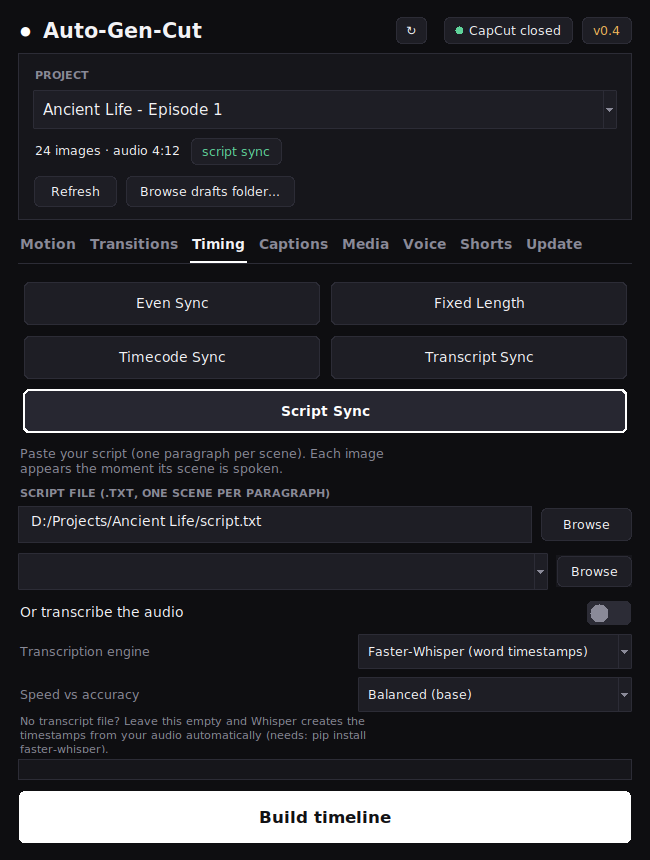
Because every image carries its time in the file name, Auto-Gen-Cut can place each one on your CapCut timeline at exactly that moment, then add motion, transitions, captions and music.
- Choose Timecode sync and the times in the file names are used
- Or use Script sync to match scenes to the spoken words
- No dragging clips, no manual timing
Questions, answered
Which services does it work with?
Google Flow and Gemini, from the Chrome side panel.
How are the files named?
In video mode, the time from your marker becomes the name, for example #0:27 is saved as 0.27.png. In image mode, files follow the order of your lines.
Where do the downloads go?
Into a subfolder inside your Downloads folder. You choose the subfolder name in the side panel.
Do I need Auto-Gen-Cut to use it?
No. The extension works on its own. Together, the time-based names let Auto-Gen-Cut build your video timeline automatically.
Does my data go through a server?
No. The extension runs in your own Chrome browser as an unpacked extension, using the service you are already signed in to.
Are there usage limits?
The generating service applies its own limits and terms. Large queues may be paused or limited by that service.
Make every image in one go.
Ask for access to the Flow Automator extension and to Auto-Gen-Cut.