Turn a script into a finished video — automatically.
Auto-Gen-Cut builds your CapCut timeline, creates the voice-over, adds captions and music, and cuts your best moments into vertical Shorts. A few clicks instead of a few hours.
- Runs on your own computer — your files stay with you
- Automatic backup of your draft before every change
- One-click installs and updates, no command line


Built for channels that publish often:
From idea to upload in five steps
Each step hands its result to the next one. The images and the voice-over are matched to each other by time, so nothing is dragged around by hand.
Write the script
One paragraph per scene. Short sentences and commas give natural pauses.
Your wordsCreate the voice-over
Pick a natural voice. Every word is timed exactly while the audio is made.
Voice tabGenerate the images
Queue every scene prompt and let the extension create and save each image under its time.
Image extensionBuild the timeline
Images land on the beat of the narration with motion, transitions, captions and music.
Auto-Gen-CutCut the Shorts
Find the best moments and save vertical clips, with captions, to a folder you choose.
Shorts tab
Images named by time are placed by time
The extension saves each image as 0.30.png, 1.00.png and so on. Auto-Gen-Cut reads the time from the file name and puts the picture on screen at that moment.

0.00.png
0.30.png
1.00.png
1.30.png
2.00.pngSix things that save you hours
The features creators use on every single video.
Everything between “script” and “publish”
The slow, repetitive parts of editing, handled for you.
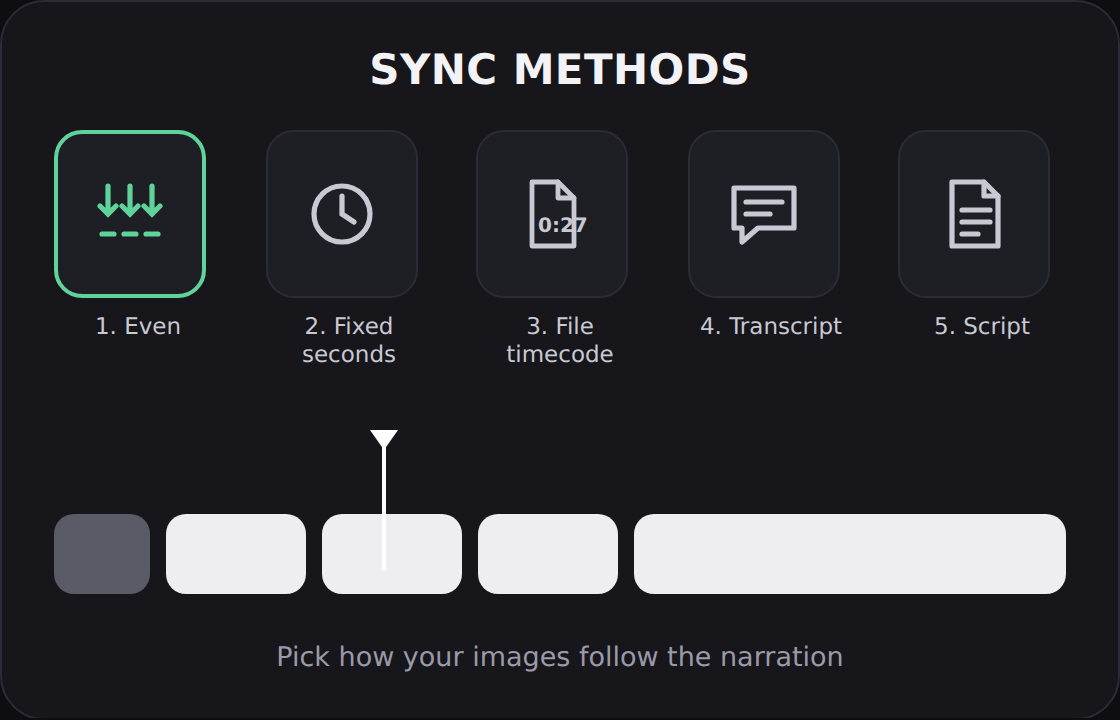
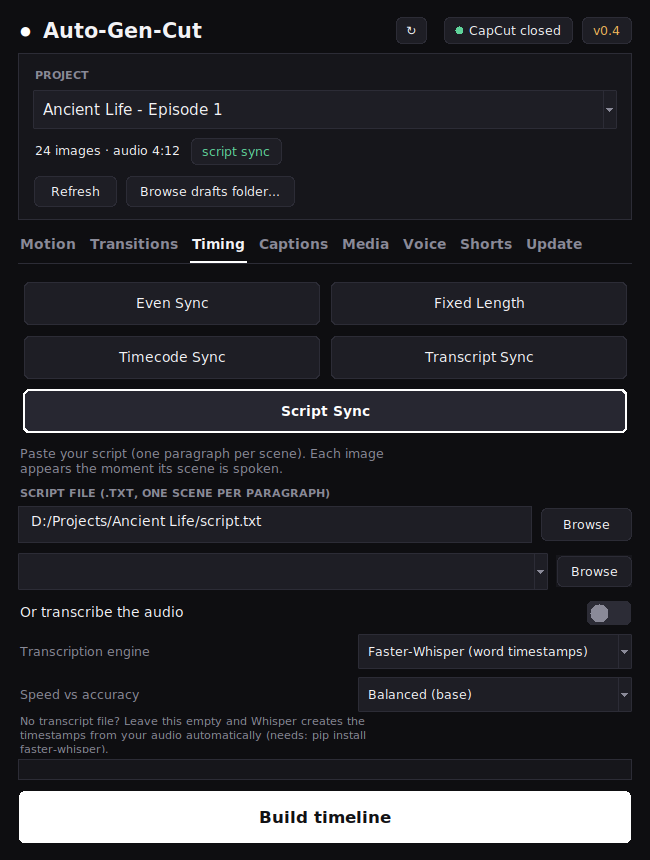
Script sync: every picture appears exactly when it is spoken
Load your script and the narration. Auto-Gen-Cut finds the moment each scene begins and places its image there, even if a few words differ from the script.
- Also places images by file-name timecode, by transcript, evenly, or by a fixed length
- Notes in [square brackets] are ignored
- Works with a transcript file, or creates one for you
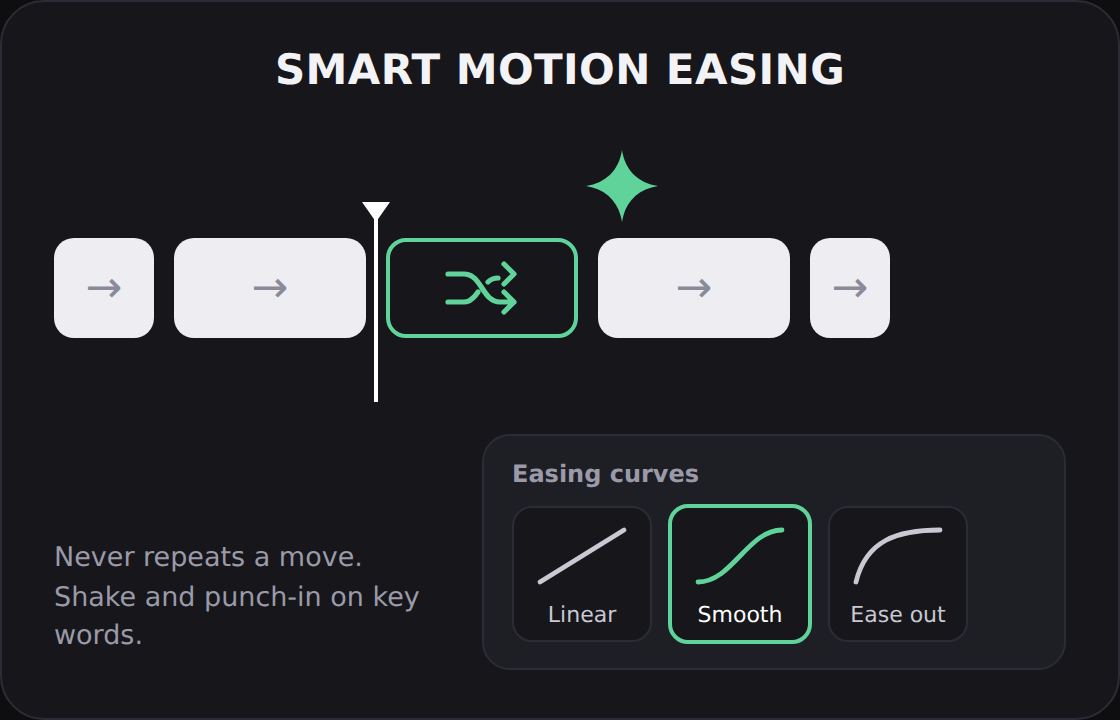
Smart motion and transitions that never feel repeated
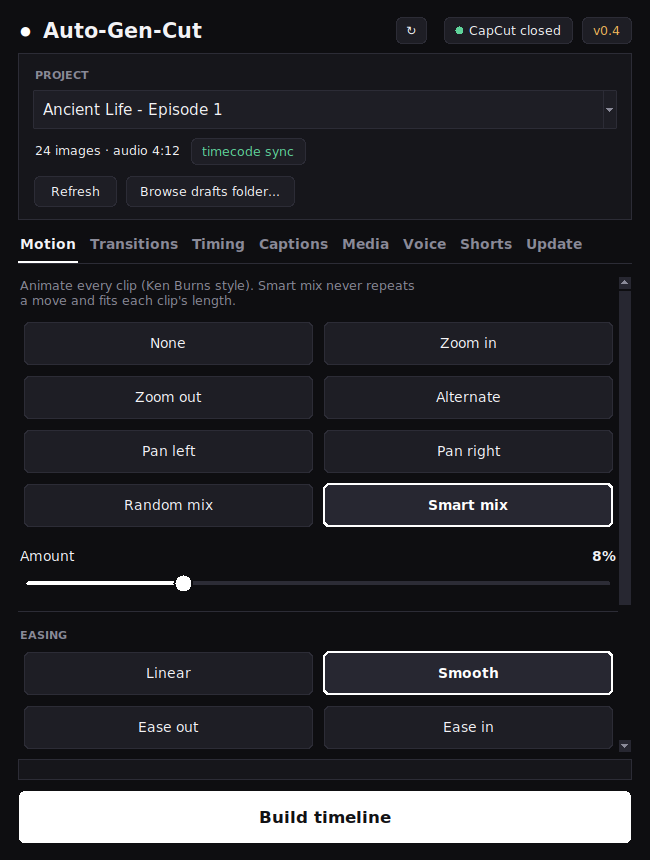
Gentle zooms and pans with eased curves, a camera-shake option, and a quick “punch-in” on numbers and power words. Smart mix never repeats a move and fits each clip’s length.
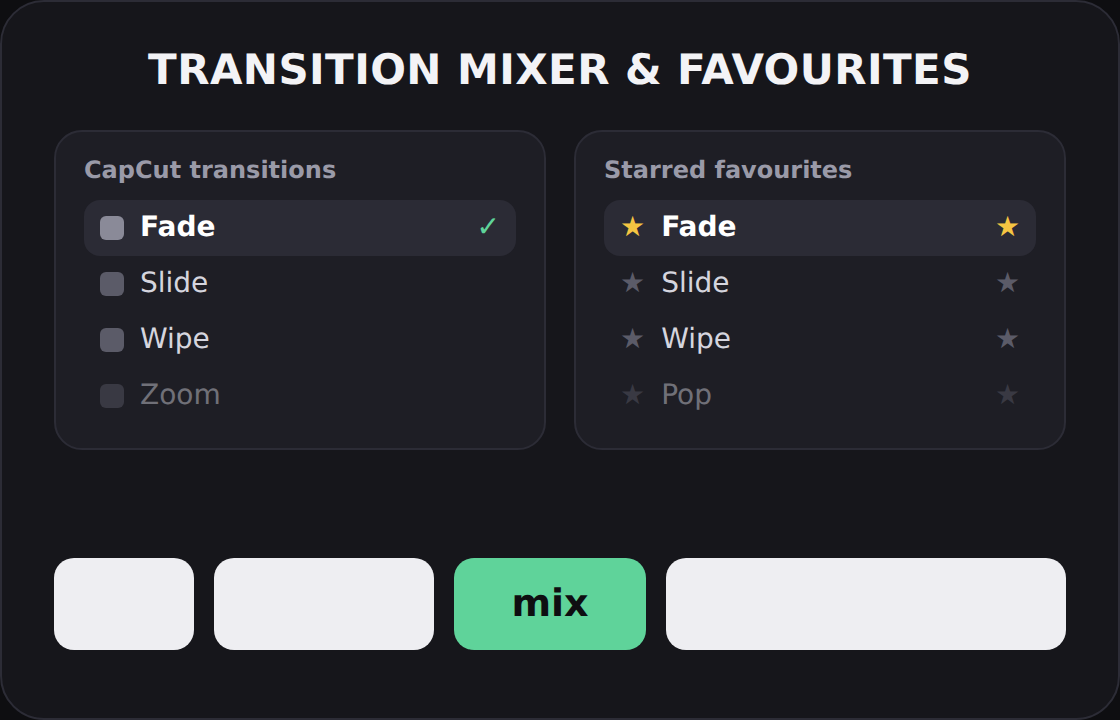
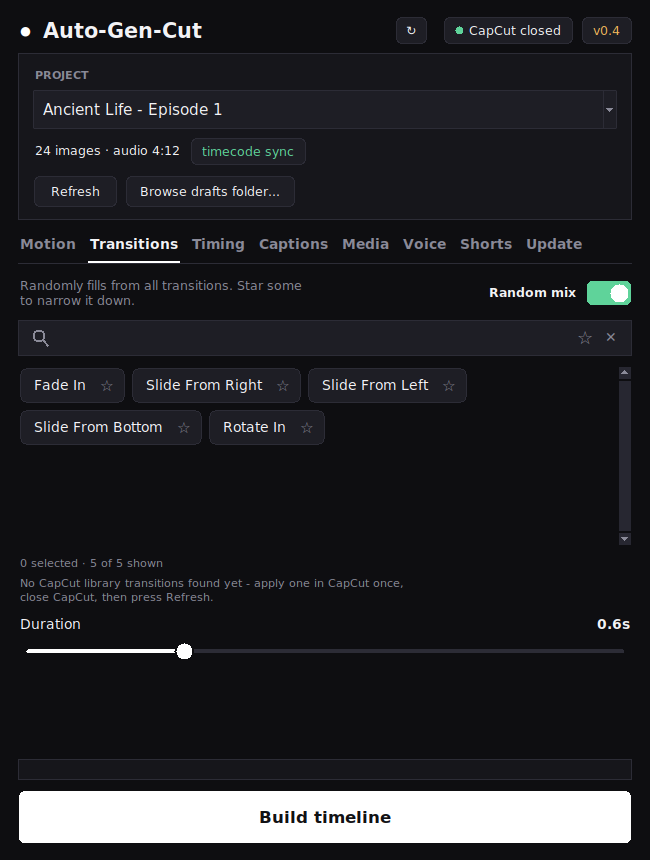
- Random or chosen transitions from your own CapCut library
- Starred favourites and a transition length slider
- Built-in fades, slides and rotates that always work
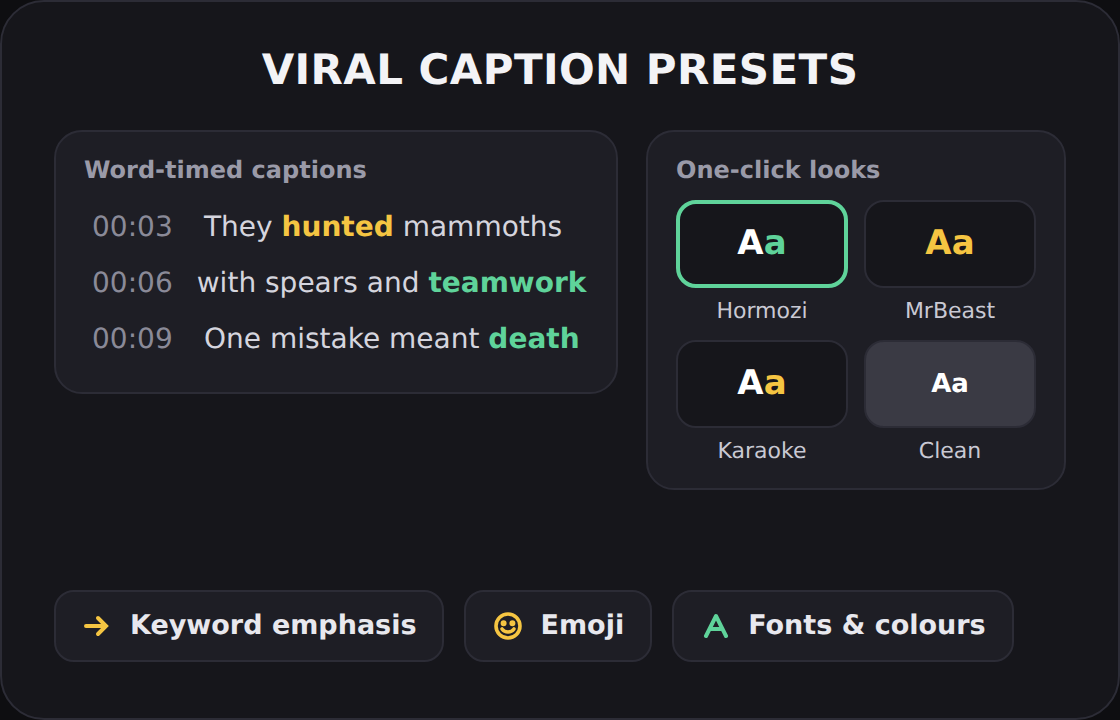
Captions people actually read
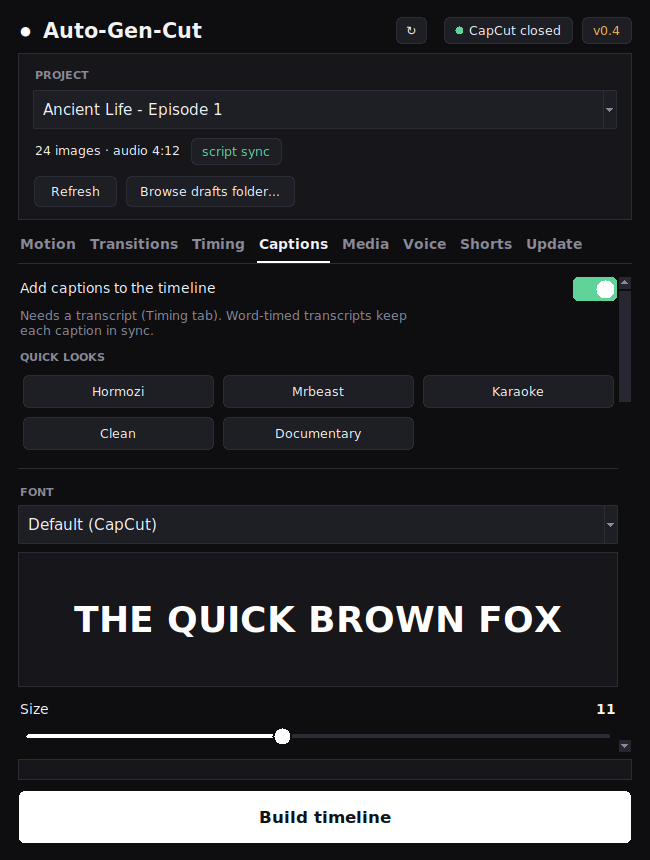
Choose a one-click look, then fine-tune the font, colours, outline and position. The spoken word can light up as it is said, and numbers get emphasis automatically.
- Hormozi, MrBeast, Karaoke, Clean and Documentary looks
- Karaoke highlight, keyword emphasis and optional emoji
- Words per caption, animation in and out
A natural voice-over from your script
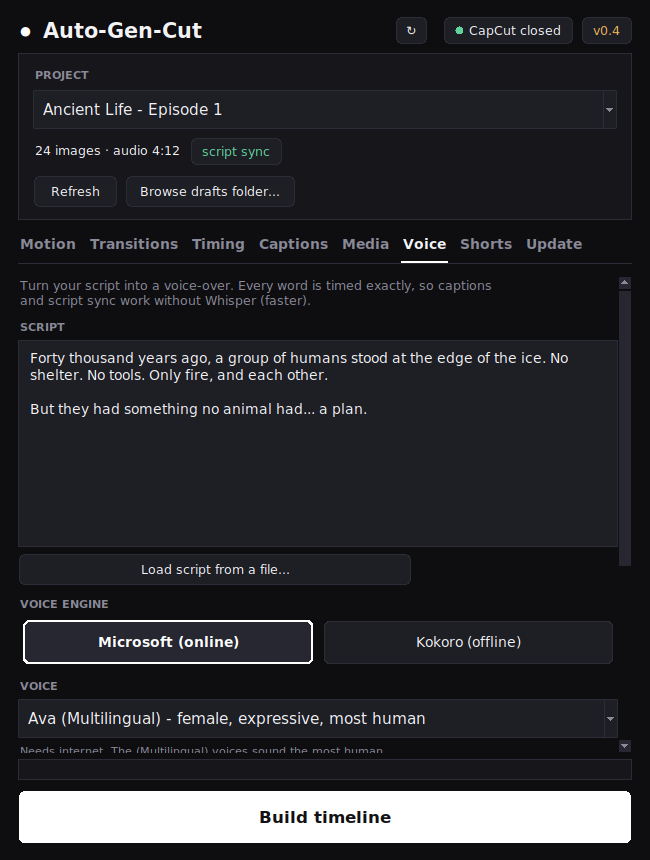
Paste the script, pick a voice, press one button. Choose online Microsoft voices or the offline Kokoro voices. A studio-polish step evens out the loudness and removes low rumble.
- 50 voices, female and male, in several accents
- Speed and pitch controls
- Exact word timing saved, so captions and sync need no transcription
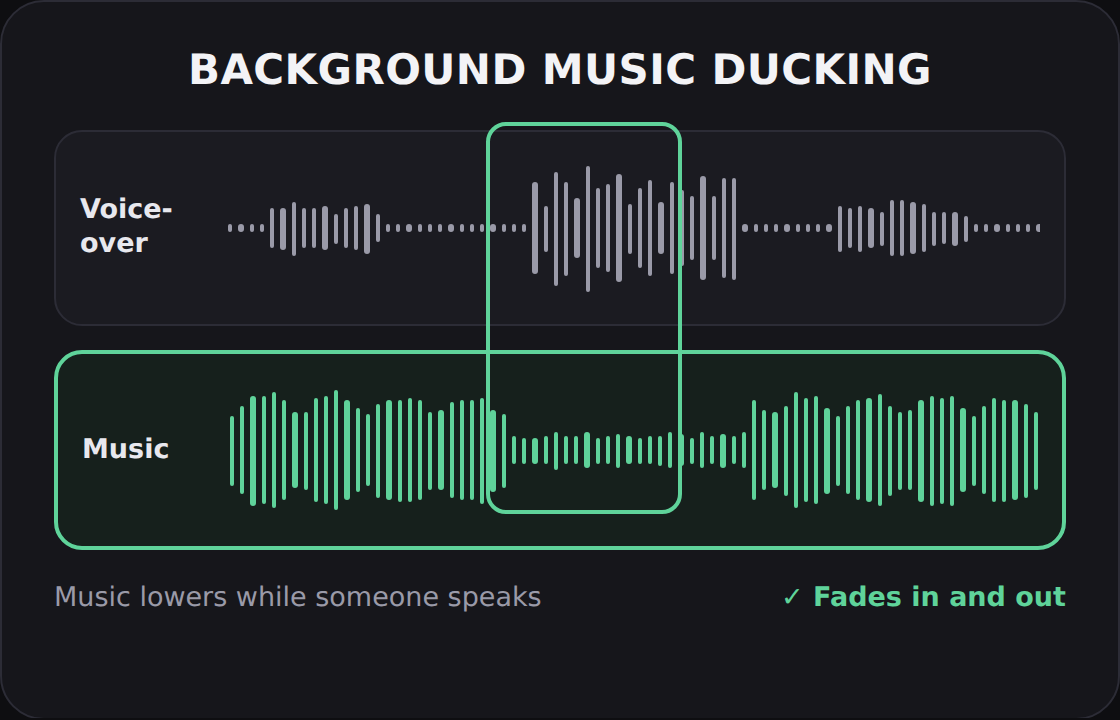
Background music that steps aside for the voice
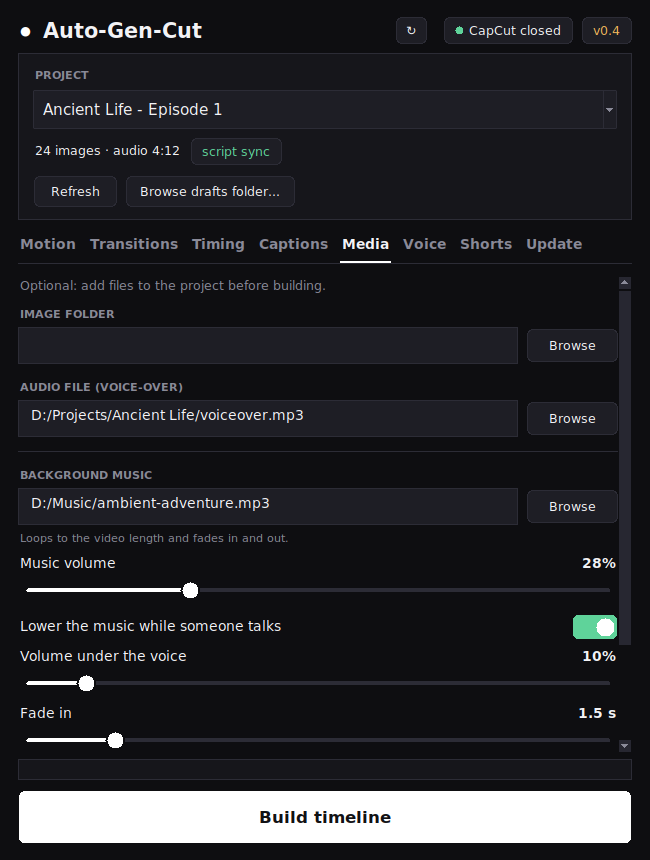
Add a track and it loops to the length of the video, fades in and out, and lowers itself while someone is talking. No manual volume points.
- Separate volume for “quiet” and “under the voice”
- Adjustable fade in and fade out
- Optional image folder and audio file added straight to the project
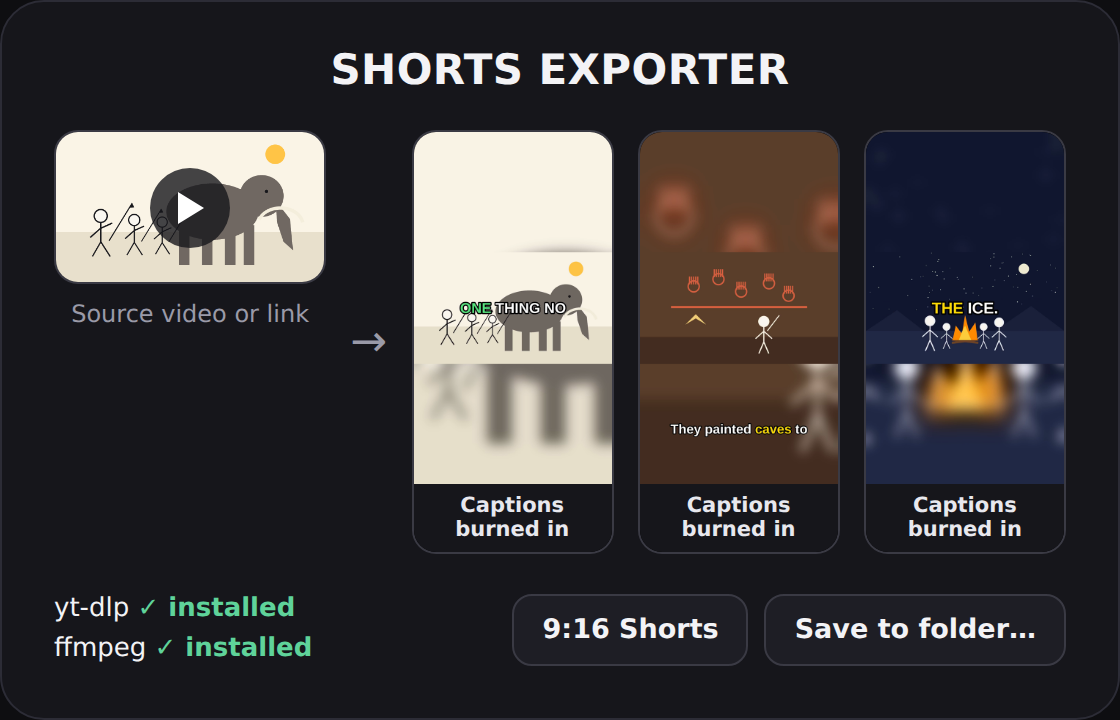
Find the best moments. Save only what you want.
Pick a video from your computer or paste a link. Auto-Gen-Cut finds the strongest moments and exports vertical 9:16 clips with captions.
Hormozi
Bold, word-by-word highlight
MrBeast
Big, punchy, two words at a time

Karaoke
The spoken word lights up

Clean
Simple boxed subtitles
Separate Shorts
The best moments become individual clips, each with a strong opening and a clean ending. Choose how many and how long.
One joined highlight clip
Join the best moments, in order, into one video with real transitions, a whoosh sound on every cut, and optional music that lowers under the voice.
Paste a link, skip the full download
For links, only the captions and the “most replayed” graph are read first. Then only the best parts are downloaded — not the whole video.
Transitions and sound, built in
The joined clip glides between moments with a transition, adds a soft whoosh on every cut, and levels the final sound to a standard online loudness with a fade in and out.
- Mix, Fade, Slide, Wipe, Pop or a plain cut
- Saved only to the folder you choose
- Nothing is ever written into CapCut’s project folder

Mid-transition
Captions burned in
Safe, simple and always up to date
Backups before every build
A copy of your draft is saved inside the project in an autocap_backup folder, so you can always go back.
One-click updates
The Update tab installs and updates ffmpeg, Whisper, the voice tools and the link downloader in the background — for Windows, macOS or Linux.
Fast, and shows its progress
Transcripts are saved and reused, the graphics card is used when available, and a live progress banner shows every step.
Every screen, one clean window
A dark, focused interface with a tab for each job.
Motion
Zooms, pans, easing, shake and punch-in.
Transitions
Your library plus built-in transitions, random or chosen.
Timing
Even, fixed, timecode, transcript or script sync.
Captions
Looks, fonts, highlight, emphasis and emoji.
Media
Voice-over, images and ducked background music.
Voice
Script to natural voice-over with word timing.
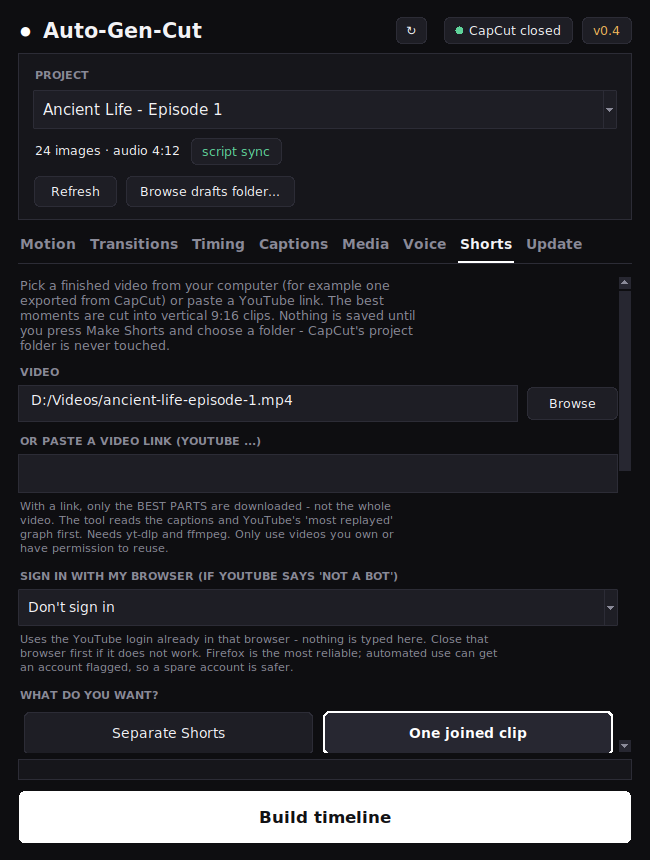
Shorts
Best moments from a file or a link, saved to your folder.
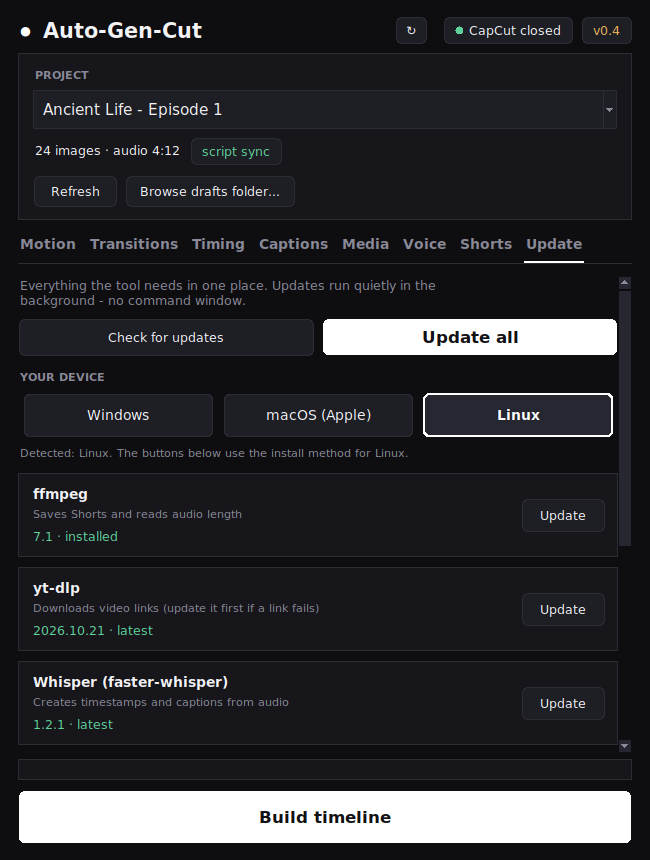
Update
Install and update every helper tool in one place.
Built on trusted open tools
Auto-Gen-Cut installs and updates these for you from the Update tab.
Up and running in a few minutes
Install Python once, open the app, and let the Update tab install the rest.
Windows
- Install Python 3.9 or newer from python.org and tick Add to PATH.
- Put
autocap.pyin a folder and run it:
py autocap.py
- Open the Update tab and press Update all.
macOS
- Install Python 3 from python.org.
- Open Terminal in the folder and run:
python3 autocap.py
- Open the Update tab, choose macOS and press Update all.
Linux
- Install Python and Tk (Debian / Ubuntu shown):
sudo apt install python3-tk python3-pip
- Run the app, then press Update all:
python3 autocap.py
Questions, answered
Do I need to know how to code?
No. After a one-time Python install, everything is done in the window with buttons and sliders. The Update tab installs the helper tools for you.
Is my project safe?
Before every build, a copy of the draft is saved in the project’s autocap_backup folder. CapCut’s draft format can change between versions, so try a copy of a project first.
Does it upload my videos anywhere?
No. Everything runs on your computer. The online Microsoft voices send only your script text to create the audio; the Kokoro voices work fully offline.
Where are my Shorts saved?
Only in the folder you pick when you press Make video. If you cancel, nothing is created, and nothing is ever written into CapCut’s own project folder.
Can I use a YouTube link?
Yes, for videos you own or have permission to reuse. Only the best parts are downloaded. If YouTube asks you to sign in, you can choose your browser in the Shorts tab, or simply pick the video file instead.
Transcription feels slow. What can I do?
Choose the “Fastest (tiny)” option, reuse saved transcripts, or create the voice-over inside the app so the exact word timing is already known. A graphics card speeds it up a lot.
Which systems does it support?
Windows, macOS and Linux. The Update tab lets you choose your device so the right install method is used.
Is it connected to CapCut, Google or Microsoft?
No. Auto-Gen-Cut is an independent tool. CapCut, Google Flow, Gemini, YouTube and Microsoft are trademarks of their owners.
Ready to make your next video faster?
Ask for access to Auto-Gen-Cut and the Flow Automator image extension, and start turning scripts into finished videos.